









How to Connect WiFi Camera to Mobile: Step-by-Step Guide

A Wi-Fi security camera becomes much more useful when you can view live video, receive alerts, review recordings, and adjust settings directly from your smartphone. But if you are setting up a camera for the first time, you may be wondering how to connect WiFi camera to mobile and what is actually happening between the camera, router, and phone.
In most home setups, the camera does not remain directly connected to your phone. Instead, the camera connects to your Wi-Fi network, while the mobile app communicates with the camera through the network and internet connection. During initial setup, some cameras may temporarily connect your phone to the camera's own hotspot or use Bluetooth to simplify pairing.
The exact buttons differ between manufacturers, but the general process is similar: power the camera, install the correct app, add the device, provide Wi-Fi credentials, complete pairing, and test live viewing.
This guide walks through the entire process, explains common connection problems, and uses the CYVIO C2 Wi-Fi Indoor Camera as a practical example.
How Does a Wi-Fi Camera Connect to Your Phone?
Before starting the setup, it helps to understand the connection itself.
A typical Wi-Fi camera system works like this:
Security Camera → Wi-Fi Router → Internet/Local Network → Mobile App
Your camera connects to the wireless router at the installation location.
Your smartphone then communicates with the camera through the manufacturer's mobile app.
When your phone is at home, both devices may be connected through the same local network.
When you leave home, your phone may use:
-
Mobile data
-
Another Wi-Fi network
-
Public Wi-Fi
As long as the security camera remains connected to its network and remote viewing is supported by the system, you can usually access compatible features through the app.
This architecture is what makes a modern security camera and phone app useful for remote monitoring instead of requiring the phone to remain physically close to the camera.
What Do You Need Before Connecting a Wi-Fi Camera?
Before beginning setup, prepare a few things.
You will typically need:
-
A compatible Wi-Fi security camera
-
A smartphone
-
A Wi-Fi router
-
Your Wi-Fi network name
-
Your Wi-Fi password
-
The manufacturer's mobile app
-
Power for the camera
-
Internet access if remote viewing is required
It is also useful to keep the camera relatively close to your router during initial configuration.
Once setup is complete and the camera has a stable connection, you can move it to the intended monitoring location if the wireless signal there is sufficient.
Check Whether the Camera Uses 2.4GHz or 5GHz Wi-Fi
One of the most common causes of setup problems is Wi-Fi compatibility.
Home routers commonly provide:
-
2.4GHz Wi-Fi
-
5GHz Wi-Fi
-
Both bands
Some security cameras only support 2.4GHz.
Others support both.
Why Does the Difference Matter?
2.4GHz generally provides:
-
Longer range
-
Better ability to pass through walls
-
Lower maximum data speeds
5GHz generally provides:
-
Higher potential speeds
-
Less range
-
More sensitivity to walls and obstacles
For most security cameras, network stability matters more than maximum internet speed.
Before pairing a camera, check its specifications rather than assuming it supports the same Wi-Fi bands as your phone.
For example, the CYVIO C2 supports 2.4GHz and 5GHz Wi-Fi, along with Wi-Fi 6 connectivity. CYVIO also lists Bluetooth support to assist with device setup.
Check out this guide to learn more: What to Look for in a Home Security Camera
How to Connect WiFi Camera to Mobile: General Steps
Although the interface varies between camera systems, the setup process usually follows these stages.
Step 1: Power On the Camera
Connect the camera to its power source or make sure a battery-powered camera has enough charge.
Wait for the device to enter setup or pairing mode.
Depending on the model, you may see:
-
A flashing indicator
-
A voice prompt
-
A setup message
-
A specific LED color
If the camera was previously connected to another network, you may need to reset its Wi-Fi configuration first.
Step 2: Download the Correct Camera App
Install the official mobile application specified by the camera manufacturer.
Avoid choosing an app based only on a similar name or icon.
The correct app is important because it handles:
-
Device registration
-
Wi-Fi configuration
-
Live video
-
Notifications
-
Playback
-
Camera settings
-
Firmware updates
-
User permissions
CYVIO provides its CYVIO app through its official Download Center and also provides model-specific setup guides.
Step 3: Create or Sign In to Your Account
Open the app and follow its registration process if an account is required.
Depending on the system, you may need to provide:
-
Email address
-
Password
-
Verification code
-
Region
Choose a unique password rather than reusing one from another service.
If the app provides additional account-security options, consider enabling them.
Step 4: Add the Camera
Look for a button such as:
-
Add Device
-
Add Camera
-
"+"
-
Scan Device
Some cameras can be added by scanning a QR code printed on the camera.
Others may be discovered automatically on the network.
Some systems support both methods.
Step 5: Connect the Camera to Wi-Fi
Select your home Wi-Fi network and enter the correct password.
Depending on the camera design, the app may temporarily connect your smartphone to a Wi-Fi hotspot created by the camera.
This temporary connection lets the app send your home network information to the device.
Once configuration is complete, the security camera connects to your normal Wi-Fi router.
Step 6: Wait for Pairing to Complete
Do not disconnect the camera or close the app while network configuration is taking place.
The camera may restart during setup.
Once the connection is completed, the app should display the new camera in your device list.
Step 7: Test the Live Feed
Open the camera from the app.
Confirm that you can see:
-
Live video
-
Correct camera name
-
Correct date and time
-
Camera status
If the camera supports pan and tilt, try moving the camera through the app.
If it supports two-way audio, test the microphone and speaker.
Step 8: Test Remote Viewing
After local setup works, switch your smartphone from home Wi-Fi to cellular data.
Then reopen the live feed.
If it works, you have confirmed that remote access is functioning.
This is an important test because successful setup while standing next to the router does not necessarily confirm that remote access has been configured correctly.
Read more on: Where to Place Security Cameras
How to Connect a CYVIO C2 Wi-Fi Camera to Your Phone
The CYVIO C2 provides a useful real-world example of how to connect security camera hardware to a mobile device.
CYVIO currently provides two ways to add the C2 through its mobile app:
-
QR code
-
Device search
The official C2 manual supports Android 6.0 or later and iOS 13.0 or later.
Method 1: Connect CYVIO C2 Using the QR Code
Step 1: Power On the C2
Connect the camera to power.
Wait until the indicator light is slowly flashing red.
This indicates that the camera is ready for the setup process.
Step 2: Open the CYVIO App
Open the CYVIO mobile app and tap the "+" icon.
Choose:
Scan QR Code
CYVIO's current C2 setup guide shows this as the primary pairing method.
Step 3: Scan the Camera QR Code
Locate the QR code on the bottom of the C2 camera.
Use the CYVIO app to scan it.
Step 4: Confirm the Indicator Light
The app will ask you to confirm the camera's indicator status.
Select the option corresponding to the slowly flashing red light and continue.
Step 5: Connect to the Camera Hotspot
During this part of setup, the phone temporarily connects to the C2's device hotspot.
The CYVIO app then asks for the Wi-Fi network that the camera should use.
Enter your home Wi-Fi credentials.
This temporary hotspot should not be confused with your normal home Wi-Fi.
Its purpose is to allow the phone to transfer network configuration information to the camera.
Step 6: Create the Activation Password
The C2 setup process then asks you to create an activation password.
Wait while the camera completes activation.
Step 7: Finish the Camera Configuration
After activation, configure:
-
Camera name
-
Time zone
-
microSD card if one is installed
CYVIO recommends formatting the SD card through the app before first use.
Once setup is complete, the C2 appears in the app and can be opened for live viewing.
Check out this guide: Security Camera Installation
Alternative: Add CYVIO C2 Through Device Search
If QR scanning is inconvenient, CYVIO also provides a device-search method.
The process is:
-
Power on the C2.
-
Confirm that the red indicator is slowly flashing.
-
Open the CYVIO app.
-
Tap "+".
-
Select Online Device.
-
Choose Wi-Fi Connect.
-
Search for the camera.
-
Select the camera when it appears.
-
Enter your Wi-Fi credentials.
-
Create the activation password.
-
Complete the remaining setup prompts.
If the app does not discover the C2 automatically, the manual says you can manually connect to the camera hotspot. For the C2, the hotspot SSID begins with NC-W1E.
What Can You Do After Connecting the Camera to Your Phone?
Connecting the camera is only the first step.
Once the camera is registered in the mobile app, compatible models may offer significantly more control.
Watch Live Video
You can open the app to see what the camera is currently viewing.
For the CYVIO C2, the app provides direct live viewing from the home screen.
Review Recorded Video
If storage is configured, you can return to earlier footage.
The CYVIO C2 app supports:
-
Timeline playback
-
Thumbnail playback
-
Playback speed adjustment
-
Date selection
-
Filtering by recording type
-
Downloading recordings to the app album
Receive Notifications
App-connected cameras can notify the phone when specified events occur.
Depending on the model, alerts may be generated by:
-
Motion
-
Human detection
-
Vehicle detection
-
Animal detection
-
Sound
The C2 currently supports motion, human, vehicle, animal, and sound detection options.
Control Pan and Tilt From Your Phone
Some Wi-Fi cameras use fixed lenses.
PTZ or pan-and-tilt models can change viewing direction through the mobile app.
The CYVIO C2 provides remote PTZ control from the app. Its product specifications list pan and tilt functionality, while the current manual includes directional PTZ controls in the live-view interface.
This can be useful in:
-
Living rooms
-
Pet areas
-
Children's common spaces
-
Home offices
-
Indoor entrances
Instead of installing multiple fixed cameras to view different directions within one room, a PTZ model may provide more flexible viewing.
Use Two-Way Audio From Your Phone
A compatible camera that can connect to phone may offer more than video.
Many modern models include:
-
Microphone
-
Speaker
-
Two-way audio
This allows the user to speak through the camera from the mobile app.
The CYVIO C2 includes a microphone and speaker, and its app interface provides a Speak function for two-way communication.
Potential uses include checking in with family members or communicating with someone in the monitored room.
Be aware that audio recording laws vary by jurisdiction, particularly when conversations are stored.
Can You Connect Multiple Security Cameras to One Phone?
Often, yes.
Many surveillance apps are designed to manage multiple cameras under one account.
That means one phone can potentially monitor:
-
Front entrance
-
Living room
-
Garage
-
Backyard
-
Driveway
-
Other areas
The CYVIO C2 manual includes a multi-camera preview option that allows additional cameras to be added within the live-view interface.
For larger CYVIO systems, the CYVIO app also supports live viewing, event notifications, and playback of recorded footage from compatible NVR-based systems.
This means phone connectivity is not limited to a single indoor Wi-Fi camera.
Can You View a Security Camera From Your Phone When Away From Home?
Yes, if the system supports remote access and the camera or recorder remains connected to the network.
Once configuration is complete, the phone and camera do not generally need to remain connected to the same Wi-Fi network.
For example:
Camera: Home Wi-Fi
Phone: Cellular network
or:
Camera: Home Wi-Fi
Phone: Office Wi-Fi
The mobile app handles remote access.
CYVIO states that compatible systems can provide live viewing through the CYVIO mobile app while the user is away from the property.
Remote performance still depends on the internet connection at both ends.
Does Your Phone Need to Stay Connected to the Camera?
No.
After a normal Wi-Fi setup is complete, your phone does not need to remain physically near the camera.
This is an important distinction when comparing surveillance cameras that connect to your phone.
The smartphone is typically a viewing and control device rather than the permanent network connection for the camera.
The camera remains connected to:
-
Wi-Fi router
-
NVR
-
Base station
-
Another supported network device
depending on the surveillance architecture.
You can then open the app when you want to check it.
Can a Security Camera Connect Directly to a Phone Without a Router?
Some cameras can create their own temporary wireless network.
This is often used during setup.
For example, the CYVIO C2 temporarily uses its device hotspot so that your smartphone can send Wi-Fi configuration information to the camera.
However, temporary pairing mode should not automatically be interpreted as full remote operation without a router.
For normal remote viewing over the internet, most home Wi-Fi cameras need access to a router or another internet-connected network.
Some specialized camera types use other technologies such as:
-
4G/LTE
-
Dedicated base stations
-
Direct Wi-Fi connections
-
Local-only wireless networks
Check the specific camera architecture before purchasing if your installation does not have home internet.
Keep your security system working reliably. Check out: Security Camera Maintenance
Can You Use a Mobile Hotspot Instead of Home Wi-Fi?
Technically, some Wi-Fi cameras may connect to a smartphone hotspot if the camera supports that network configuration.
However, using the same phone as both:
-
The camera's internet hotspot
-
The monitoring device
can make initial setup more complicated.
A separate hotspot, mobile router, or second phone is usually easier for this type of arrangement.
You should also consider:
-
Mobile data consumption
-
Hotspot availability
-
Phone battery usage
-
Network stability
-
Whether the hotspot remains active when the phone is idle
For a permanent security installation, a fixed router is generally more practical than relying on a personal phone hotspot.
Can Battery Cameras Connect to Your Phone?
Yes, many battery-powered cameras use the same general app-based concept.
If you are searching for a portable camera that connects to phone, look at both the communication method and power source.
A portable model may use:
-
Rechargeable battery
-
Solar-assisted battery
-
Wi-Fi
-
Base station
-
4G/LTE
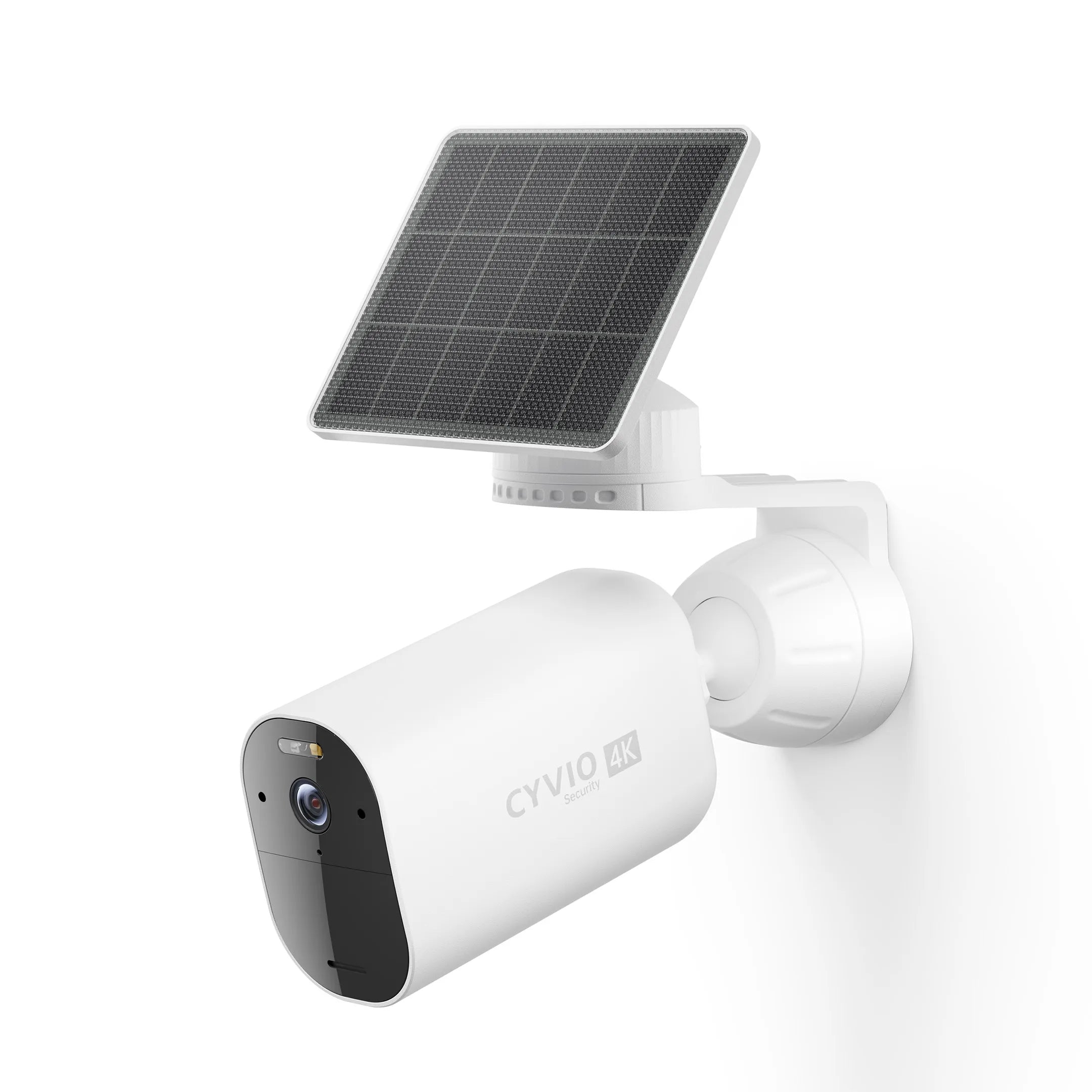
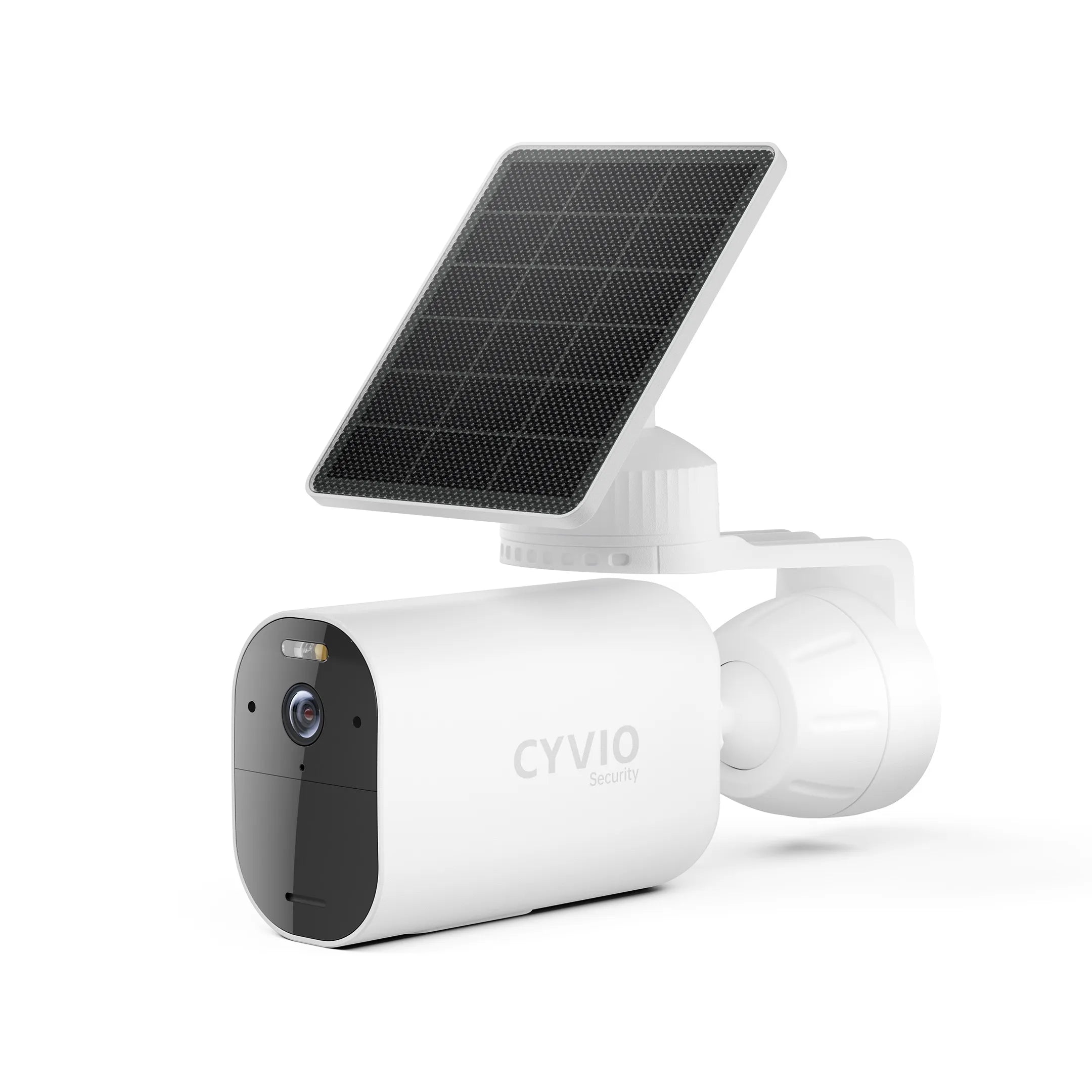
CYVIO's B220 and B221, for example, are rechargeable battery/solar cameras that support remote access through a mobile app. The B220 product page also lists two-way audio through the app.
This type of camera is different from the plug-in C2 because it is designed for locations where running a power cable may be inconvenient.
Wi-Fi Camera vs. PoE Camera: Can Both Connect to a Phone?
Yes.
"Connects to a phone" does not necessarily mean the camera itself needs Wi-Fi.
Wi-Fi Camera
The path may look like:
Camera → Wi-Fi Router → CYVIO App
PoE Camera System
The path may look like:
Camera → Ethernet/PoE NVR → Router → CYVIO App
The phone can provide remote access in both cases.
CYVIO's PoE systems, for example, provide live view, event notifications, and recording playback through the CYVIO app even though the cameras themselves use wired PoE connections rather than Wi-Fi.
This distinction is useful when comparing cameras because mobile viewing and camera networking are separate features.
Not sure how many cameras your home needs? Check out: How Many Security Cameras Do I Need?
What If the Wi-Fi Camera Will Not Connect to Your Phone?
Connection problems usually come from one of a small number of causes.
1. Wrong Wi-Fi Password
Double-check the password.
Passwords are case-sensitive, and a single incorrect character can prevent setup.
If you recently changed the router password, the camera may still have the previous credentials saved.
2. The Camera Is Not in Pairing Mode
Look at the indicator light and compare it with the setup instructions.
For the CYVIO C2, initial QR setup expects the indicator to be slowly flashing red.
If the camera has already been configured previously, a reset may be necessary before adding it again.
3. Wrong Wi-Fi Band
A common generic problem is attempting to connect a 2.4GHz-only camera to a 5GHz-only network.
Check the product specifications first.
The CYVIO C2 does not have this particular limitation because its current specifications include both 2.4GHz and 5GHz Wi-Fi support.
For another camera model, compatibility may differ.
4. Camera Is Too Far From the Router
Your smartphone may show good Wi-Fi reception while the camera has a weaker connection because:
-
The devices are in different locations
-
Walls block the camera signal
-
The camera antenna differs from the phone
-
Other wireless networks create interference
During setup, place the camera closer to the router.
Once pairing is complete, move it gradually toward the final location and confirm that the connection remains stable.
5. The Phone Did Not Join the Temporary Camera Hotspot
Some pairing methods require your smartphone to briefly switch away from home Wi-Fi and join a network generated by the camera.
If you decline the connection prompt, setup may stop.
For the CYVIO C2 QR setup, the app specifically guides the phone through connecting to the camera's device hotspot before home Wi-Fi credentials are passed to it.
6. Camera Permissions Are Disabled on the Phone
Depending on the app and setup method, the app may need permission to use:
-
Camera
-
Bluetooth
-
Local network
-
Notifications
For example, QR-code setup requires access to the smartphone camera.
If the app cannot scan the code or discover a nearby device, check phone permissions.
7. The QR Code Will Not Scan
Try:
-
Cleaning the camera label
-
Increasing room lighting
-
Moving the phone slightly farther away
-
Holding the phone steady
-
Checking camera permission for the app
If QR pairing still does not work, use the alternative device-search method if your camera supports it.
The CYVIO C2 supports both QR scanning and device search.
8. The Camera Was Previously Connected to Another Network
Old network credentials can interfere with new setup.
If you changed:
-
Router
-
Wi-Fi name
-
Wi-Fi password
-
Network provider
you may need to clear the camera's previous configuration.
For the CYVIO C2, CYVIO instructs users to press and hold the physical Reset button until the camera provides a voice prompt. Removing the device from the app alone does not clear the Wi-Fi information stored on the camera.
After the reset, add the device again and enter the new Wi-Fi information.
9. VPN or Special Router Settings Are Interfering
Some network configurations can make discovery or pairing more difficult.
Potential factors include:
-
VPN running on the phone
-
Client isolation
-
Guest Wi-Fi restrictions
-
Firewall rules
-
Separate VLANs
-
Router access restrictions
For initial troubleshooting, connect the phone and camera through a normal home Wi-Fi configuration and temporarily disable unnecessary networking layers.
Re-enable them after setup and test whether camera access continues working.
10. The Camera Keeps Going Offline After Setup
If pairing succeeds but the camera repeatedly goes offline, investigate network quality rather than repeating the setup immediately.
Check:
-
Distance from router
-
Number of walls
-
Wireless interference
-
Router placement
-
Camera power supply
-
Router stability
-
Camera firmware
A camera installed in a distant corner of a property may require a better access point location or different surveillance architecture.
Why Does the Camera Work at Home but Not on Mobile Data?
This usually indicates that local network access works but remote access does not.
Possible causes include:
-
Camera has lost internet access
-
Router is offline
-
Mobile data is disabled for the camera app
-
App account is not properly signed in
-
Device has not completed cloud/remote registration
-
Network settings block external communication
First check whether another household device has internet access.
Then verify that the camera still appears online inside the app.
Finally, test the mobile app from another external Wi-Fi connection to determine whether the problem is specific to cellular data.
How Much Internet Speed Does a Wi-Fi Camera Need?
There is no single speed requirement for all cameras.
Video bandwidth depends on:
-
Resolution
-
Bitrate
-
Frame rate
-
Compression
-
Number of cameras
-
Simultaneous viewers
A higher-resolution camera generally requires more upload bandwidth when streaming remotely.
The CYVIO C2, for example, supports configurable video bitrate from 128 Kbps to 2 Mbps according to its current specifications.
For multiple cameras, simultaneous remote streams can increase total bandwidth requirements.
Internet stability can be more important than maximum advertised speed.
Does the Camera Continue Recording If the Phone Is Turned Off?
In many systems, yes.
The smartphone app is primarily an interface for viewing and controlling the camera.
Recording itself may be handled by:
-
microSD card
-
NVR
-
DVR
-
Cloud service
depending on the product.
For the CYVIO C2, recordings can be stored on a microSD card, with current specifications supporting capacities up to 512GB.
Your phone therefore does not need to stay open for the camera to use its configured local recording functions.
Can Multiple Phones Connect to the Same Camera?
Many camera systems provide device-sharing or multi-user functions.
This can be useful when several household members need access.
The CYVIO C2 manual includes a Share function within its device controls, and its current specifications list support for multiple user access.
Instead of sharing the primary account password, use the camera system's official sharing function when available.
This gives you more control over who has access to the camera.
How to Make a Phone-Connected Camera More Secure
Connecting surveillance equipment to a network makes account and network configuration important.
Use a Unique Password
Do not reuse your email, shopping, or social-media password.
Create a separate password for the camera account.
Protect Your Wi-Fi Network
Use a strong wireless password and a modern router security mode supported by your devices.
Keep Firmware Updated
Camera updates may include:
-
Stability improvements
-
Compatibility changes
-
Security fixes
-
New functions
The current CYVIO C2 manual recommends keeping camera firmware updated through the app.
Review Shared Users
Periodically check who has camera access.
Remove access when it is no longer needed.
Use Privacy Controls Where Appropriate
Some indoor cameras provide a privacy function for times when monitoring is unnecessary.
The CYVIO C2 manual states that its Privacy Mode disables live viewing, recording, and audio when activated.
This can be useful for an indoor camera located in a frequently occupied room.
What Should You Look for in a Camera That Connects to a Phone?
Not all phone-connected cameras offer the same functions.
When comparing products, consider the following.
| Feature | Why It Matters |
|---|---|
| Wi-Fi compatibility | Determines whether the camera works with your router |
| Mobile app | Controls viewing and settings |
| Remote live view | Lets you check the camera away from home |
| Motion alerts | Sends event notifications |
| Local storage | Allows footage to be retained locally |
| Two-way audio | Supports communication through the camera |
| Night vision | Enables monitoring in low-light conditions |
| PTZ | Lets the phone control camera direction |
| Detection zones | Helps focus alerts on relevant areas |
| Device sharing | Allows selected household members to access the camera |
| Privacy mode | Can disable monitoring when desired |
The right combination depends on where and why the camera will be used.
CYVIO C2 as a Phone-Connected Indoor Camera
For an indoor camera that can connect to phone, the CYVIO C2 combines Wi-Fi connectivity with several app-controlled features.
Its current specifications include:
-
5MP / 2880 × 1620 video
-
2.4GHz and 5GHz Wi-Fi
-
Wi-Fi 6
-
Bluetooth connectivity
-
Pan and tilt control
-
Human, animal, vehicle, and motion detection
-
Human tracking
-
Sound detection
-
Infrared night vision
-
Color night vision
-
Two-way audio
-
microSD storage up to 512GB
After pairing, CYVIO states that users can remotely view the live feed and control PTZ functions through the mobile app.
The camera can therefore serve as one example of how modern Wi-Fi surveillance combines the phone, wireless network, camera controls, alerts, and local storage into one interface.
Wi-Fi Camera Connection Checklist
If you want the setup process to go smoothly, use this checklist before starting:
| Check | What to Confirm |
|---|---|
| Camera power | Camera is powered and ready for setup |
| Smartphone | Compatible Android or iOS version |
| Official app | Correct manufacturer app installed |
| Wi-Fi name | Correct SSID selected |
| Wi-Fi password | Entered accurately |
| Frequency | Camera supports selected 2.4/5GHz network |
| Router distance | Camera has a usable signal |
| Setup mode | Camera LED or prompt indicates pairing mode |
| App permissions | QR/Bluetooth/local network access allowed where required |
| Remote test | Camera works after phone switches to mobile data |
| Storage | microSD/NVR configured if recording is needed |
Checking these items usually makes troubleshooting much faster than repeatedly resetting the camera.
FAQs About Connecting a Wi-Fi Camera to a Phone
How do I connect my Wi-Fi security camera to my phone?
Install the camera manufacturer's official app, turn on the camera, add it through the app, and follow the prompts to provide your Wi-Fi information. Some cameras use QR codes, Bluetooth, temporary hotspots, or automatic device discovery during setup.
Does my phone need to use the same Wi-Fi as the camera?
During initial configuration, many cameras require the phone to be on or near the same local network. After remote access has been configured, compatible systems can generally be accessed from mobile data or another Wi-Fi network.
Can a Wi-Fi camera connect directly to a phone?
Some cameras create a temporary hotspot for pairing, while others may support direct local connections. For typical remote monitoring, however, the camera normally connects to a router while the phone accesses it through the mobile app.
Can I connect a security camera without Wi-Fi?
It depends on the camera type. Alternatives may include PoE, local NVR connections, cellular cameras, or other proprietary wireless systems.
Can I use my phone hotspot for a Wi-Fi camera?
Some cameras may connect to a mobile hotspot, but a fixed router or dedicated mobile router is generally more practical for long-term surveillance because the hotspot must remain active.
Why won't my security camera connect to the app?
Common causes include an incorrect Wi-Fi password, incompatible wireless band, weak signal, camera not being in setup mode, missing app permissions, or previously stored Wi-Fi settings.
Why is my camera offline on my phone?
The camera may have lost power, Wi-Fi, or internet access. Router instability or weak wireless coverage can also cause offline status.
Can I watch my camera when I am not at home?
If the system supports remote access and the camera remains online, you can generally check it through the mobile app using mobile data or another internet connection.
Can several phones access the same security camera?
Many camera systems support device sharing or multiple user accounts. Use the official sharing feature rather than giving other users the primary account password where possible.
Does a Wi-Fi security camera record to my phone?
Usually not by default. The phone commonly acts as the viewing interface. Footage may instead be stored on a microSD card, NVR, DVR, or cloud service. Some apps also allow individual clips or snapshots to be downloaded to the phone.
Does CYVIO have a mobile app?
Yes. CYVIO provides the CYVIO app and official setup resources through its Download Center.
How do I connect the CYVIO C2 to my phone?
Power on the C2 and wait for the slowly flashing red light. In the CYVIO app, tap + → Scan QR Code, scan the QR code on the bottom of the camera, confirm the indicator status, connect to the temporary device hotspot, enter your Wi-Fi credentials, create an activation password, and finish the setup prompts.
Conclusion: How to Connect WiFi Camera to Mobile
Understanding how to connect WiFi camera to mobile becomes much easier once you separate the three devices involved: the camera, the router, and the smartphone.
In a typical setup, the security camera connects to your home Wi-Fi network, while the smartphone uses the manufacturer's app to access the camera. The phone may communicate directly with the camera for a short period during initial pairing, but after setup, the router normally provides the camera's ongoing network connection.
The basic process is:
Power camera → Install app → Add device → Connect Wi-Fi → Complete activation → Test live video → Test remote access
For CYVIO users, the C2 provides a straightforward example. The current C2 setup process supports QR-code or device-search pairing through the CYVIO app, while the camera itself supports dual-band 2.4GHz/5GHz Wi-Fi and app-based live viewing, PTZ control, playback, alerts, two-way audio, and other monitoring functions.
If your camera does not connect immediately, check the network password, Wi-Fi compatibility, signal strength, pairing status, and existing Wi-Fi configuration before assuming there is a hardware problem. In many cases, identifying which part of the connection—camera, router, or mobile app—is failing is the fastest way to resolve the issue.